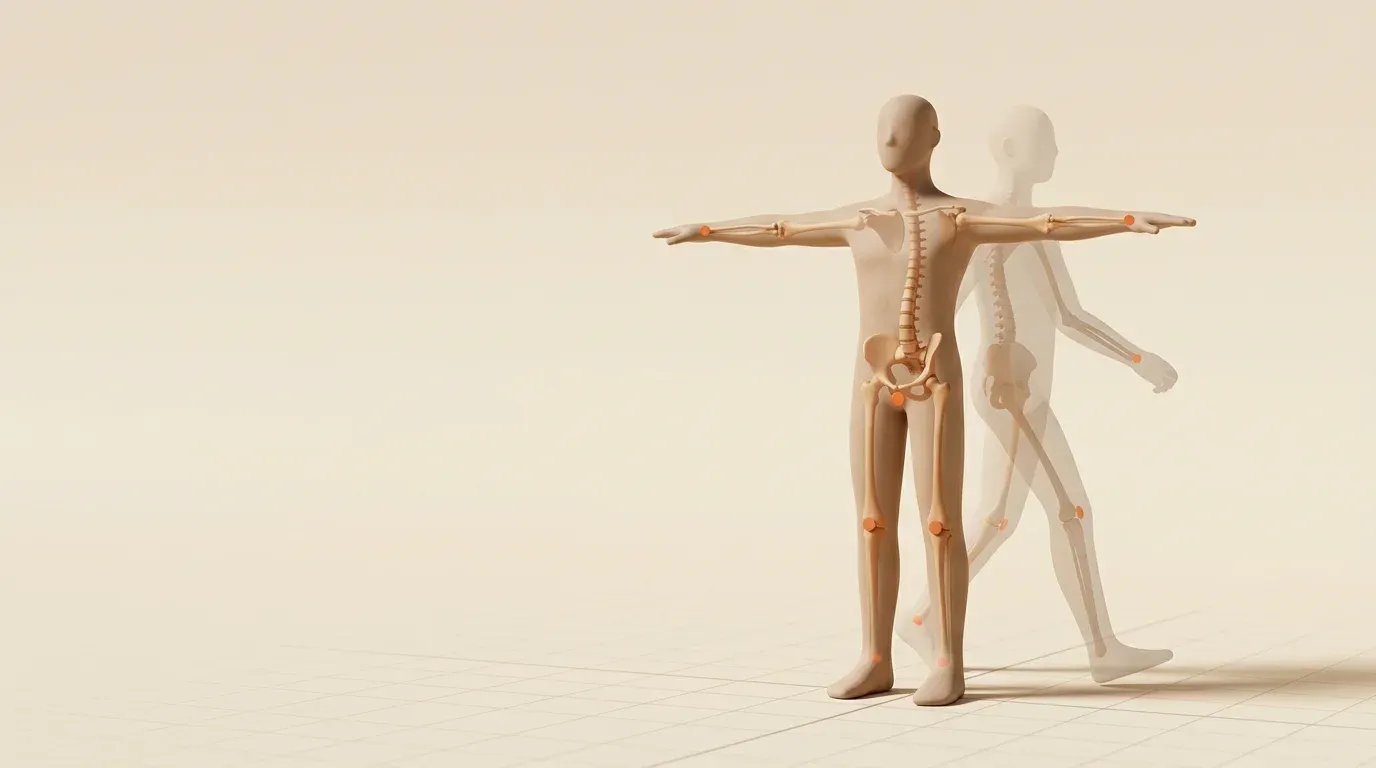
A finished humanoid cannot walk, and the deadline does not care. Hand rigging eats days, and a bad shoulder weight ruins the shot you needed this week. Prototypes, student films, and client previews all stall on a missing skeleton. Mixamo gives you a browser auto-rigger, a motion library, and a file you can drop into Blender, Unity, or Unreal after you sign in with an Adobe ID, place the markers, and download a clip you can test today.
Add your name, your role, and one project where you used this workflow. A real byline is the trust signal this page still needs from you. The facts below were checked on 24 September 2026 against Adobe’s public pages. Those pages are older than the calendar. Read them yourself before you ship a commercial build.
What is this service, in plain words?
Mixamo is Adobe’s free browser service for bipedal humanoid characters. It keeps a catalog of ready characters, it builds a skeleton for a mesh you upload, and it plays recorded human motion on that skeleton. You then download a file and keep working in your own software.
A rig is the skeleton inside the mesh. Skin weights tell each vertex which bone to follow. Motion capture is movement recorded from a person, then cleaned so many characters can reuse it. You do not need to know the math to get a first walk. You do need a clean humanoid mesh, or the rig will fail in a way that looks random.
This is not a full animation studio. It will not invent a new performance from a text prompt. It will not rig your dragon. It will not lip-sync a speech. It will get a standard human body moving fast, which is the job most prototypes actually have.
Picture a 1.8 meter courier in a T-pose. You built her in Blender for a delivery game. You need an idle, a walk, a run, a pickup, and a hit react before Friday’s playtest. You do not need a tear on her cheek. This service fits that job. The dragon on the same task list needs a different tool.
Who gets a real win from it?
You get a win if you already have a humanoid, or you are happy to start from a library character, and you need believable body motion this week.
Indie developers use it to reach a playable build before they hire an animator. Teachers use it so students can study timing without spending the whole term on skin weights. Motion designers use it when a pitch needs a person in the frame and the budget does not include a capture stage. Previs teams use it to block a scene, then replace the hero shots later with hand animation.
You should skip it when the character is the product. A close-up hero with cloth, a tail, a cape, and a speech needs a rigger and an animator. You should also skip it for animals, robots with extra arms, and vehicles. Adobe’s own common-questions page says the auto-rigger and the animation libraries are for bipedal humanoids only.
A crowd of background people is a fair use of the library. Ten unique heroes with ten unique acting beats is not. Use the library to cover the ordinary motion. Spend your human hours on the shots a player will remember.
How do you sign in, and what does it cost?
You need an Adobe ID. That is usually the email you use for an Adobe account. Adobe’s common-questions page says the service is free and does not require a Creative Cloud subscription or any extra purchase.
Two blocks matter more than the price. The same page says Mixamo is not available for Enterprise IDs or Federated IDs. It is also not available for users who have a country code from China, because that release of Creative Cloud does not include these web services. Those lines were on the page when Adobe last updated it on 14 September 2021. Confirm them on the live page if your account is a company login or your country setting is unusual.
Do not share a password to get around an Enterprise block. Ask for a personal Adobe ID that the FAQ allows, or pick another pipeline. Do not put a false country on an account to slip past a regional block. If the block still stands, use a different approved tool.
Create the account before the day you need the rig. A forgotten password has killed more Friday playtests than a bad knee weight. Store the login with the person who owns the project files, not in a chat thread.
What three jobs does the site actually do?
People say the name and mean three different jobs. Split them before you start, or you will download the wrong file.
The first job is the character catalog. You can pick a ready humanoid, pose it, and download it. That is the fastest path when you do not have a model yet. The mesh, the rig, and the textures come together. You still need to check scale in your engine. A library person can look short or huge next to a door you modeled in meters.
The second job is the auto-rigger. You upload your own mesh. You place markers. The site builds a skeleton and skin weights. This is the job that saves a week, and it is also the job that fails when the mesh is a mess. A library character skips this risk. Your custom hero does not.
The third job is the motion catalog. You search clips, preview them on the current character, adjust a few controls, and download. The clips are recorded human actions: walks, runs, idles, jumps, hits, sits, gestures. Together, these three jobs are what people mean when they say Mixamo.
You can do job one today and job two next month. You do not have to upload a custom mesh to learn the download dialog. Start with a library character if your own model is still a blockout.
How does the auto-rigger build a skeleton?
Open Mixamo and sign in. In the editor panel, choose Upload Character. Adobe’s rigging guide says the upload accepts FBX, OBJ, and ZIP.
Turn embed media on when you export FBX, or the textures stay behind and the body looks gray. An OBJ file does not carry textures by itself. Put the OBJ, the MTL, and the image files in one ZIP, then upload the ZIP. If you already have a rigged character, the same guide says the file must be FBX, again with embed media on. The site maps that skeleton to its own system so the clips can play.
After the upload, you see the character and a set of markers. Adobe tells you to place markers on the wrists, elbows, knees, and groin, and to follow the on-screen instructions. Confirm the placement. The rig then runs. The guide says this usually takes a few minutes, not a coffee-break hour, when the mesh is valid.
When it finishes, you can download the rigged character or press Find Animations and put a clip on it. If you uploaded a character that already had a skeleton, you do not rebuild the rig by hand. The mapper tries to match your bone names to the motion. Odd bone names and extra helper bones are a common reason that map fails. A plain humanoid skeleton maps more often than a rig full of costume controls.
Save the rigged file to your disk the moment it is ready. The common-questions page is blunt about storage. Only the last used character is kept. When you replace that character, the site does not keep a history of the earlier character or the earlier clips. Upload the rigged file again later if you need a new clip. Your hard drive is the archive. The browser is not.
Which mesh rules decide if a rig succeeds?
Adobe lists the rules on the common-questions page. They look fussy until you see a failed upload. Then they look cheap.
The character needs a head, a body, arms, and legs that a person can point at. If the proportions are too far from a human, the auto-rigger may refuse the mesh. A stylized hero with a big head often still works. A blob with legs buried in a skirt often does not.
Do not include large extra parts. Extra limbs, wings, tails, and large hair or clothing can break the solve. A small ponytail may pass. A cape the size of a tent may be read as another arm. Strip the prop, rig the body, then attach the prop in your own software.
Use a default or neutral pose. A strong asymmetry, or a mesh you already posed into a fight, can fail. A T-pose or an A-pose is the safe bind. Arms should sit away from the ribs so the wrist and elbow are obvious. Legs should be straight enough that the knee is a corner, not a fold.
The file should contain the character and nothing else. Cameras, lights, helper empties, and floor planes cause failures. Export selected meshes only. Delete history or freeze transforms before you export, so old scale values do not ride along.
Parts need to connect. A floating head, or eyes that sit in empty space far from the skull, can stop the solve. Join separated shells that are meant to be one body, or move them so they do not read as a gap. You can keep a jacket as its own object only if it still sits on the body with no obvious break.
Center the character on the world origin. Adobe says the auto-rigger works best at 0, 0, 0. That also stops a later offset when unit scales differ. Put the feet on the ground plane. A character hovering at Y=20 will walk in the air after you import the clip.
Use a clean mesh. Holes, flipped normals, and stacked vertices make the weights worse even when the rig “succeeds.” Merge by distance. Recalculate normals. Put a loop of edges around the shoulders, elbows, and knees if you modeled the body yourself. The solver cannot invent topology you never built.
| Check | What good looks like | What fails | Fix before you upload |
| Body type | One humanoid with a head, torso, two arms, and two legs | Animal, vehicle, extra arms, big wings, or a large tail | Rig creatures in a tool built for them |
| Pose | Neutral T-pose or A-pose, facing forward | Sitting, mid-swing, or one arm glued to the chest | Reset the bind pose and open the arms |
| Origin | Centered at 0, 0, 0, feet on the ground | Mesh parked far from the origin | Set the origin and freeze transforms |
| File contents | Character meshes only | Cameras, lights, old skeletons, floor planes | Export the selected meshes and nothing else |
| Connection | Head, hands, and feet attached | Floating head, distant eyes, a gap at the neck | Join shells or close the gap |
| Scale | Roughly human height in your scene units | Tiny speck or building-sized body | Apply scale and match units |
| Mesh health | Closed surface, normals facing out | Holes, flipped faces, doubled vertices | Merge by distance and fix normals |
| Textures | FBX with media embedded, or a ZIP of OBJ, MTL, and images | Gray body, missing maps | Re-export with the textures included |
| Clothes and hair | Close to the body | A tent coat or hair that reads as a limb | Rig the body, then attach the extra mesh |
| Symmetry | Close to even left and right | One huge shoulder prop | Remove the prop, rig, then attach it |
How do you apply and edit a motion clip?
You need a character on the stage before a clip means anything. Use a library character or the custom mesh you just rigged. Mixamo plays the clip on the loaded character, so confirm the mesh is yours before you download.
Open the Animations area, or use Find Animations in the editor. Search by word, and use the filters when you know the kind of action. Click a thumbnail. The clip should play on your character in the view. If it plays on a different body, you are still on the previous character. Re-upload yours. Remember, the site forgot the one before it.
After the clip is on the character, use the editor controls to change speed and the space between the arms. Use arm spacing when the hands pass through the hips or a jacket. Use speed when the walk feels late or rushed for the shot. Download only after the preview looks right on this mesh, not on a default body you tested earlier.
If the page shows more controls for that clip, such as a trim, a mirror, or an in-place switch, use them before you download. Do not assume every clip has the same knobs. If a traveling walk includes forward motion and your game code also moves the actor, look for an in-place option. Then check the root bone in the engine.
Download once per clip you intend to keep. Name the file on disk with the character, the action, and whether it is in place. Hero_Walk_InPlace.fbx is a name a teammate can trust. download (3).fbx is how libraries rot.
Do not browse for an hour and download one file. Pick the smallest set that makes the character playable. You can always upload the rigged file again and pull one more clip. You cannot recover a session you never saved.
How do you bring clips into Blender, Unity, and Unreal?
The handoff from Mixamo fails in three boring ways: scale, a second skeleton, and root motion. Fix those and the engines behave.
In Blender, import the FBX. Check the scale in the viewport against a cube that is one meter, or against a human reference you trust. If the character arrives a hundred times too small or too big, the export units were wrong. Apply scale on the mesh and the armature before you export your own FBX next time. Do not “fix” a tiny character by scaling the actor in the engine and leaving the animation unscaled. The feet will skate.
Keep one Blender file for the rigged character in a bind pose. Import extra clips, then move their actions onto that armature if you know the Action editor. If that retarget step is new to you, import each clip as its own file and test one action first. A pile of armatures in one scene is how people assign the walk to the wrong skeleton.
Hide or delete imported cameras and lights. They sometimes ride along in an FBX and clutter the outliner. The performance does not include them.
In Unity, import the bind-pose file first. Select it and set the rig type to Humanoid. Let Unity build the avatar from that T-pose. Put the avatar on the model. Create an Animator Controller and assign it. For later clips, set the rig to Humanoid as well. If Unity asks where the avatar comes from, copy it from the bind-pose avatar. Do not let every clip invent a new avatar. That is the usual reason clip B will not play on mesh A.
Turn on loop time for cycles such as idle, walk, and run. Leave it off for a punch, a hit, a wave, and a death. If the body looks white, the materials did not bind. Assign them. If the body looks like glass, the material may be set to transparent. Switch it to opaque. If the textures are missing, you uploaded or exported without the images. Re-export with embed media and download again.
Drive speed with a parameter, not with five overlapping scripts. A simple blend from idle to walk to run, based on the pawn’s speed, is enough for a first playable. Add jump and hit as one-shot states that return to locomotion. Root motion on the Animator will move the transform from the clip. Turn it off if your character controller already moves the body.
In Unreal, import the skeletal mesh first, then import animations onto that skeleton. When a later file tries to create a new skeleton, point it at the original one. If you need the clips on the engine mannequin, use the IK retargeter tools in your Unreal version rather than forcing bone names by hand on every file. Check the root motion flag on each animation sequence. A walk that also moves the actor will drift if the movement component moves them too.
Maya and Cinema 4D follow the same idea. Import FBX. Confirm units. Characterize or retarget onto the rig you will animate further. Adobe does not support troubleshooting inside those programs. The common-questions page says that in plain language. If the file is wrong, fix the export. Do not open a ticket and hope Adobe will debug a Maya scene.
Godot users often convert FBX to glTF in Blender, then import the glTF. Do that conversion once, on a clean file, and test one cycle. A broken conversion looks like a bad rig. It is often just a scale or a rotation mode.
Photoshop is a side path. The FAQ points to Adobe’s Photoshop help if you want to animate a 3D character there. Use that page for that job. This guide stays with game and film files.
Which clips should a new character start with?
A new character does not need the whole catalog. A playable person needs a small set you can blend.
Start with a still idle that loops. Add a walk and a run that you can switch by speed. Add a turn in place if the game camera sits close, because a pop from left to right looks cheap. Add a jump only if the game jumps. Add a pickup or a use if the player touches objects. Add one hit react and one defeat if the game has combat. Add a sit-to-stand only if a chair is in the scene. Add a wave or a short talk gesture if an NPC must acknowledge the player.
Skip dance packs, weapon flourishes, and climbs until the idle and the walk look right on your mesh. Fancy clips hide a bad rig. A plain walk reveals it.
For each clip, write down four facts in the filename or in a sheet: loop or one-shot, in place or root motion, frame rate you saw after import, and whether the hands need more space. That sheet is the difference between a library and a folder of mystery files.
A reasonable first pack looks like this.
| Clip | Search idea | Loop in the engine | Motion on the root | Why it is in the pack |
| Idle | idle, neutral stand | Yes | No | The default state |
| Walk | walk | Yes | Only if the clip must move the actor | The main locomotion test |
| Run | run, jog | Yes | Same choice as the walk | Speed change without a new rig |
| Turn | turn, rotate | No, or a short loop | No | Stops a visual pop on a sharp turn |
| Jump | jump | No | Usually yes, then test | Only if the game leaves the ground |
| Pickup | pick up, crouch | No | No | Hands meet a prop |
| Hit | hit, react | No | No | Combat feedback |
| Defeat | death, fall | No | No | End state, do not loop it |
| Talk | wave, gesture | No | No | NPC acknowledgment |
Download the walk twice if you are unsure: once in place, once with travel. Test both in a gray scene. Keep the one that matches your controller. Delete the other from the game project so nobody wires the wrong file. Keep the rejected file in an archive folder if you might switch controllers later.
What can you legally ship in a game or a film?
Read the primary pages before you treat a Mixamo download as a product you can resell. The rules that matter sit on Adobe’s common-questions page and in the additional terms that took effect on 23 June 2021.
The FAQ says you can use both characters and animations royalty free for personal, commercial, and non-profit projects. The examples it gives are illustrations and graphic art, 3D printed characters, films, and video games. A paid game on a store is a video game. A client film is a film. A poster that uses a render of the character is graphic art. A printed figurine is in the 3D print example. You do not need a Creative Cloud plan for that permission, according to the same FAQ.
The FAQ does not say you may repackage the downloaded characters and clips as a standalone product for other people to download or buy. A finished game is not the same thing as an asset-store pack of the raw files. If your business idea is “sell these downloaded files,” stop. Ask Adobe for a written answer, or build original characters and original motion. Do not treat a blog comment as a license.
The additional terms add a hard limit. You may not, and you may not tell anyone else to, use the service, the software, or any content, data, output, or other information received or derived from them to create, train, test, or otherwise improve machine learning algorithms or artificial intelligence systems. That includes architectures, models, and weights. A research demo that measures a model you already trained, without feeding it these files, is a different question for your counsel. Training on the clips is not an open question. The terms bar it.
The FAQ does not, in the list of allowed projects, demand a credit line. It also does not say a credit line expands your rights. If a publisher asks for proof, send the FAQ link and the additional-terms PDF. Let a lawyer read both against your contract. Rights language changes. The copies cited here show last-updated dates in 2021. Check the live pages on the day you ship.
Keep the downloaded files inside the project team that needs them. Do not post the raw FBX set on a public drive so strangers can grab them. The FAQ does not grant a right to republish those raw files. The additional terms also point at Adobe’s general terms, so read those too before you send files outside the project.
What should you ignore in old Fuse tutorials?
Older lessons tell you to build a person in a desktop app called Fuse, then send that person to the website for a rig. Fuse was the character builder paired with this service in the years around the Adobe acquisition. Current Adobe help does not start there. It starts in the browser: pick a library character, or upload FBX, OBJ, or ZIP.
If a tutorial’s first step is a Fuse install from Creative Cloud, close it. That path is stale. You will lose an hour on an installer that Adobe no longer presents as the way in. Build the humanoid in Blender, Maya, or whatever tool you use now. Export a clean bind pose. Upload that file.
You can still learn from the old lessons when they talk about marker placement, T-pose, and in-place walks. Those ideas did not die with the desktop app. Ignore any step that depends on a Fuse button, a Fuse blend-shape preset, or a promise that the desktop app will stay installed. Face shapes from that old builder are not something you should plan a new production around.
When a classmate sends you a Fuse file, ask for an FBX of the mesh in a neutral pose instead. You can rig that. You cannot revive a retired installer with hope.
Where does the rig fail, and how do you fix it?
Most failures are export failures. The browser is only the messenger.
The upload spinner ends in an error. Export again with only the body meshes. Remove cameras and empties. Try FBX first. If FBX fails, try OBJ inside a ZIP with the textures. Confirm the file is not a blend file, a Maya scene, or a glTF. The documented upload types are FBX, OBJ, and ZIP.
The markers sit on the air, or on the wrong limb. The pose is not neutral, or the arms touch the torso, or the character faces backward. Rotate the model in your 3D tool so it faces the front view you expect. Open the arms. Straighten the knees. Upload again. Dragging markers onto a folded limb will not invent a clean elbow.
The shoulders twist after the first clip. Move the wrist and elbow markers and rig again. If a pad or a strap sticks out like a third arm, delete it and attach it after the rig. Extreme shoulder width on a stylized mesh can also fold. Scale the shoulders closer to a human silhouette, rig, then restore the style in a later edit if you must.
The knees bend backward. The leg markers are swapped, or the bind pose was already bent. Reset the pose. Place the knee marker on the front of the knee, where the on-screen guide shows you. Do not place it on the back of the calf.
The character is huge, tiny, or offset. The origin or the units are wrong. Freeze transforms. Set the origin. Export in the unit your engine uses. In Unity, inspect the scale factor on the model importer. In Unreal, inspect uniform scale on import. Do not stack three scale fixes. Pick one.
The body is gray. Embed media was off, or the OBJ was uploaded without its MTL and images. Rebuild the ZIP. Names matter. If the MTL points to textures/diffuse.png, that folder must be inside the ZIP at that relative path.
The hands pass through the thighs. Increase arm spacing before you download. If the mesh has very thick hips, a library walk may still clip. Pick a wider stance clip, or fix the pose in your DCC tool after import. A little clip on a background character is acceptable. The same clip on a hero close-up is not.
The feet slide. Either the clip moves forward and your controller also moves the actor, or the scales do not match, or the clip is a one-shot you are looping badly. Export or select an in-place version. Turn off root motion. Match scale. Loop only cycles. A walk that ends on a different foot than it starts will hitch every loop. Trim to a cycle, or pick another walk.
The second animation will not play. You created a second skeleton. Download later motion onto the same rig, and in Unity copy the original avatar. In Unreal, import onto the original skeleton. Do not re-rig the character between clips unless you plan to redo every file.
The site “lost” your character. It did not lose it. It kept only the last one, which is what the FAQ describes. Your local rigged FBX is the source. Upload that file, not the original static mesh, when you want more clips. If you never downloaded the rig, you must rig again. That is the whole lesson.
An Enterprise login fails, or a Federated login fails. The FAQ excludes those ID types. Use an Adobe ID the page allows. A China country code is also listed as blocked on that FAQ. Do not route around a regional restriction with a fake address.
Fingers look like mittens. The source hands may be mittens, or the finger bones did not get a clean weight. For a crowd, leave it. For a hero holding a key, paint weights in Blender or Maya after import, or use a hand pose you key yourself on top of the clip. The body motion can stay. The fingers can be yours.
The face does not talk. Do not expect it to. Plan lip sync in a face tool or with shape keys you authored. The body library is still useful under a face you animate yourself. Many student films do exactly that: body from the library, blinks and mouth from the shot.
A clip looks fine in the browser and wrong in the engine. Trust the engine. Lighting, scale, and retargeting change the read. Always test in a gray scene with a floor and a door for scale before you show anyone.
How does this compare with other ways to animate?
Use Mixamo when you need ordinary human motion on a humanoid, and you need it now, at no extra subscription. Use a hand rig when the character is a hero, a creature, or a cloth problem. Use a mocap pack you bought when you need a style this catalog does not have, and when that pack’s license fits the game. Use a newer text-to-motion tool when you need a specific action the catalog misses, and only after you read that tool’s training and commercial terms.
If you are choosing today, ask one question. Is the character a standard human in a standard action? If yes, start here. If the audience will study the fingers, the cloth, or the acting, start in your DCC tool and use the library only as reference timing.
Why do searches for maximo and mixoko land here?
People misspell the product name. Maximo is the misspelling you will see most. It is also a word other industries use, so a search for maximo can surface payroll tools or vehicles before a character site. Mixoko is rarer. It is not a second product, a fork, or a mobile app you should install from a random page.
If you typed maximo or mixoko, you want the Adobe humanoid service this page describes. Neither spelling is the brand. The brand is Mixamo. Bookmark the real name. Check the address bar before you upload a client mesh to a lookalike site. A fake uploader is a bad place to put an unreleased character.
Teach the spelling to your class or your team once. A shared note with the real address saves a week of “the site looks different” messages. Those messages are often a different website entirely.
What should you finish before you show the shot?
A preview is a test, not a vibe. Run it in the engine, on the floor, at the camera distance the player will have.
Watch one cycle of idle. The feet should stay down. The hips should not bounce as if the root is double-applied. Watch a walk from the side and from the front. Hands should clear the thighs. Elbows should not flip. Knees should bend forward. The head should stay on the neck. Hair and coats should not spike into the camera. If they do, those meshes were too big for the solve, or their weights are wild. Hide them for the preview or bind them again.
Check the first and last frame of every loop. They should meet. A hitch means the clip is not a cycle, or you trimmed it badly. Check one-shots in context. A death that pops back to idle is a state-machine bug, not a bad download. Fix the transition.
Put a door, a table, or a second character in the scene. Scale errors hide in an empty void. They shout when a person cannot fit through a door you know is two meters tall.
Then show a person. Not the whole catalog. One idle, one walk, one action. Ask what reads wrong in five seconds. Fix that. Another twenty clips will not hide a sliding foot.
Which follow-up pages should sit under this hub?
This page is the hub. The next pages should each answer one job, then link back here. That is how a reader, and a search engine, can see that you actually know the workflow.
Write a page on a clean T-pose export from Blender, with units, apply scale, and selected objects only. Write a page on Unity’s Humanoid avatar and a two-state Animator. Write a page on Unreal’s skeleton import and IK retargeter. Write a page on sliding feet and root motion. Write a page on face shapes, and say clearly that this body library does not do that job. Write a one-page license checklist your producer can hand to a lawyer, with the two Adobe links and a date stamp.
Do not write ten pages that repeat this introduction. Each child page should start at the task. Link the mesh rules back to the table on this hub instead of pasting them again. A reader who lands on the Unity page should reach a working avatar in one sitting. A reader who lands here should understand the whole map in one sitting.
Suggested slugs, if you want them short and clear:
| Follow-up page | Suggested slug | What it must answer |
| Clean T-pose export | blender-tpose-export | How do I export a mesh this rigger will accept? |
| Unity setup | unity-humanoid-avatar-setup | How do I play two clips on one avatar? |
| Unreal setup | unreal-skeleton-retarget | How do I import onto one skeleton? |
| Sliding feet | fix-sliding-feet-root-motion | Why does the walk skate, and which flag fixes it? |
| Face work | face-shapes-outside-body-library | Where do blinks and lips come from? |
| License checklist | character-motion-license-checklist | What will we show a lawyer before launch? |
Publish the Unity page or the Blender page first if that is the question your readers already ask. A hub with no child pages is a brochure. A hub with six task pages is a library.
Questions people ask before they download
Is Mixamo free for a commercial game?
Yes. Mixamo is free with an Adobe ID, and Adobe’s FAQ says a Creative Cloud plan is not required. The same page says you may use the characters and animations royalty free in video games, including commercial work, and also in films, illustrations, and 3D prints. That is not a grant to sell the raw files as a pack. Read the FAQ and the additional terms again on the day you ship.
Which files does Mixamo accept for upload?
Mixamo accepts FBX, OBJ, and ZIP, according to Adobe’s rigging guide. Turn embed media on for FBX so textures come with the mesh. For OBJ, zip the OBJ, the MTL, and the textures together. A character that is already rigged must be FBX. Save the rigged download locally, because the site keeps only the last character.
Can this auto-rigger handle a creature, a tail, or a car?
No. Adobe’s FAQ says the auto-rigger and the animation libraries are for bipedal humanoids only. A large tail, wings, or extra limbs can also make a humanoid fail. Strip those parts, rig the body, and attach them later, or use a rigger built for creatures.
Does the site store every character I upload?
No. Only the last used character is stored. Replace it, and the previous character and clips are gone from the account. Download the rigged file before you switch characters. Upload that rigged file again when you need another clip.
Do I have to credit Adobe on a film or a game?
A credit line is not necessary for the FAQ’s list of permitted projects, and a credit line does not grant you privileges that the FAQ did not grant you. If a publisher wants proof, send the common-questions page and the additional terms, and have counsel read both. Do not rely on a forum post from an earlier year as your only record.
Why do people search for maximo or mixoko?
Those are misspellings, not separate tools. Maximo is the common typo and also a word other products use. Mixoko is not a product you need to download. Use the Adobe character service, check the site address, and save the correct spelling in your project notes.
What should you do this afternoon?
Open Mixamo today and rig one character before you close the laptop. Use a simple humanoid you already own, or a library character if your mesh is still a blockout. Place the markers with the on-screen guide. Download an idle and a walk. Import both into the engine you actually ship in. Put a door in the scene so scale is obvious.
Write down the one thing that broke. A twisted shoulder, a missing texture, a double-speed slide. That note is worth more than another hour of browsing clips. Fix that one thing on the next export. When the next character arrives, you will already know the settings that work.
Send your team the mesh table and the license notes. Put the FAQ link in the project folder with the date you checked it. Then make the follow-up page your readers ask for most, and link it back here. A hub grows when the next page solves the next stuck moment, not when it repeats the same promise.